


Free Image Compressor: How to Compress Images Without Losing Quality
2026-07-23 12:07:34
A free image compressor shrinks a photo's file size while keeping it visually sharp enough for the web, email, or printing - usually cutting 50-90% off the original size in a few seconds, with no software to install and no cost.
If you've ever tried to upload a photo to a website and gotten a "file too large" error, or watched a page crawl because of a single 4MB hero image, this guide covers exactly how compression works and how to get the most out of it.
What Image Compression Actually Does
Every photo is made of pixel data, and much of that data is redundant - subtle color gradients the human eye barely notices, or metadata like camera model and GPS coordinates that nobody needs on a web page. Compression removes or simplifies that redundant data.
Lossy compression throws away some image data permanently. JPG uses this method, which is why a JPG can go from 3MB to 300KB with almost no visible difference at normal viewing sizes.
Lossless compression repacks the file more efficiently without discarding any data. PNG relies on this, which is why PNGs compress less dramatically than JPGs but never lose a single pixel of detail.
Most free compressors, including the one on this site, let you choose where to land on that spectrum instead of locking you into one method.
Why Bother Compressing Images at All
Three reasons come up constantly:
- Page speed. Images are typically the heaviest part of any webpage, and Google's Core Web Vitals treat Largest Contentful Paint (LCP) as a ranking factor, which is very often a large image. Shaving a hero image from 2MB to 200KB can cut a full second off load time on mobile.
- Storage and bandwidth. Running an online store with 5,000 product photos? The difference between 1MB and 100KB per image is 4.5GB of storage and, more importantly, 4.5GB less data your visitors have to download.
- Email and upload limits. Plenty of forms, job applications, and email providers cap attachments at 5-25MB. A compressed image clears that bar without any extra software.
How to Compress an Image in Under a Minute
- Open the free image compressor and drag in your file - JPG, PNG, WebP, GIF, and SVG are all supported.
- Let the tool auto-select a quality level, or drag the slider yourself to target a specific file size, such as under 100KB for a blog thumbnail.
- Compare the before-and-after preview. Zoom in on faces, text, or fine detail - that's where over-compression shows up first.
- Download the compressed file. Batch users can queue multiple images and download them together as a single ZIP.
No account, no email address, and no watermark - the file goes in, and a smaller file comes out.
Which Format Should You Actually Use?
- JPG - photos, backgrounds, and anything with lots of color variation and no need for transparency.
- PNG - logos, screenshots, icons, or anything that needs a transparent background or crisp text edges.
- WebP - the modern default for websites; WebP files typically run 25-35% smaller than comparable JPGs at the same visual quality, and every major browser supports it.
- SVG - vector logos and icons that need to stay sharp at any size; compress these by minifying the code, not the pixels.
If you're not sure which format fits, upload the file and let the compressor detect it - most tools recommend the best output type automatically.
Getting the Best Results Without Ruining the Image
- Compress once, from the original file. Re-compressing an already-compressed JPG stacks quality loss on quality loss.
- Aim for a target size instead of a percentage. "Under 150KB" is a more useful goal than "70% smaller" because it tells you exactly what you're optimizing for.
- Strip EXIF metadata if the image doesn't need it - camera settings and GPS location add invisible weight and, in some cases, a privacy risk.
- Don't compress past the point where fine detail - text, faces, thin lines - starts to blur. Preview at 100% zoom before you commit.
Frequently Asked Questions
Is a free image compressor actually free, with no hidden limits?
Yes, for tools like this one - no sign-up, no per-image fee, and no cap on how many images you compress in a session.
Will compressing an image reduce its quality?
Lossy compression (JPG) causes some quality loss, but at moderate settings it's invisible to the eye at normal viewing sizes. Lossless compression (PNG) causes none. A good compressor lets you preview the result before downloading so you never have to guess.
How much smaller will my file get?
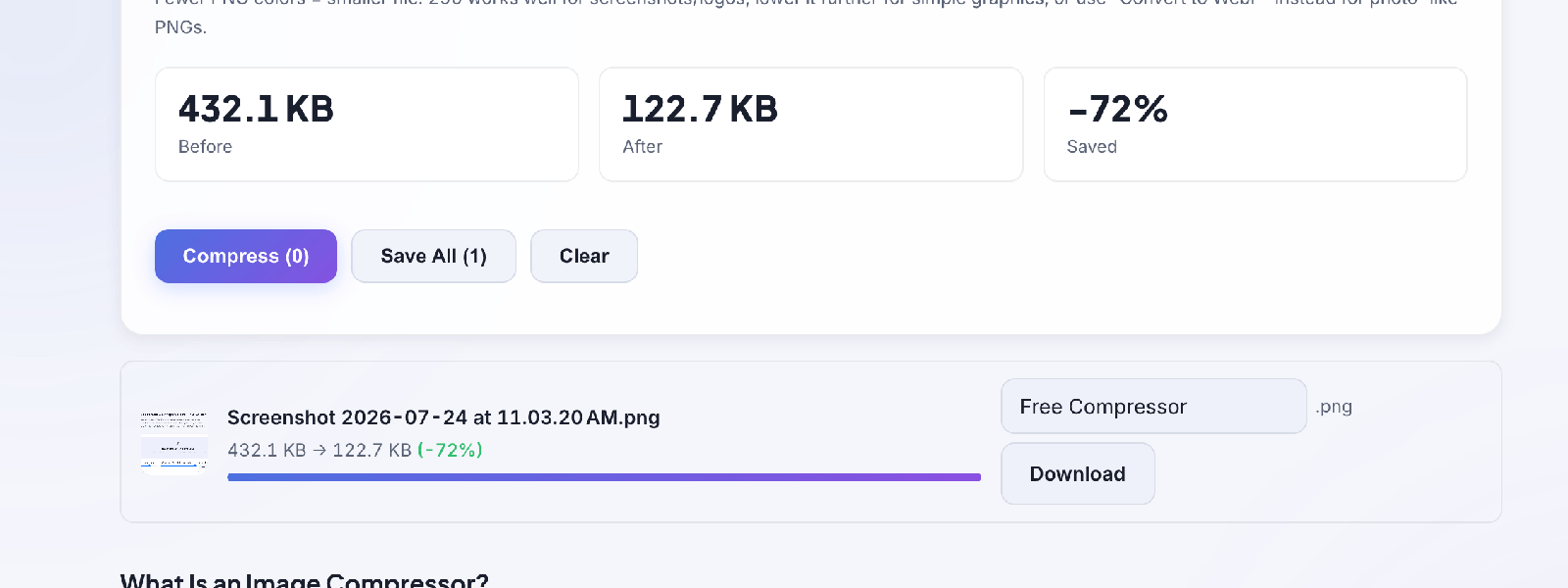
Typical results run 50-90% smaller than the original, depending on the source format and how much redundant data it contained. A raw camera JPG usually compresses further than an image that's already been through another compressor once.
Is it safe to upload personal photos?
Reputable browser-based compressors process the image in your browser or delete it from their server shortly after conversion. Avoid tools that don't disclose what happens to uploaded files.
Can I compress multiple images at once?
Yes - most free compressors, including this one, support batch uploads, so you can compress an entire folder in one pass instead of one file at a time.
Try the free Image Compressor tool yourself - drop in a file and see the size difference in seconds.
Reviews
Log in to write a review.
No written reviews yet - be the first to share your thoughts.